Subscribe and pay
Pick a plan on the Billing page and pay by card at checkout; see whether a card is on file and when you'll be charged; and add a card during the 5-day trial. Step by step, with screenshots.
Only the workspace's owner can pay. A teammate's Billing page names the owner instead. Prices, plans and the currency you are quoted are on Billing and plans.
Subscribe to a plan
Open Billing in the right workspace
Sign in at app.adcopilot.cloud and choose Billing in the left menu. A plan applies to one workspace only, so check the workspace's name at the top of the left menu first. See Which workspace a plan applies to.
Pick monthly or yearly, then a plan
Choose Monthly or Yearly (two months free) beside Compare plans, then press Subscribe on the plan you want. Recommended marks the plan that fits how you work: your Google Ads accounts, your people and your busiest day of operations in the last 14 days. On Free with little use yet, Next step marks the first paid plan; on a paid plan that already fits, More room marks a bigger one when your busiest day is close to the limit. A plan the workspace is too big for says why in place of its button.
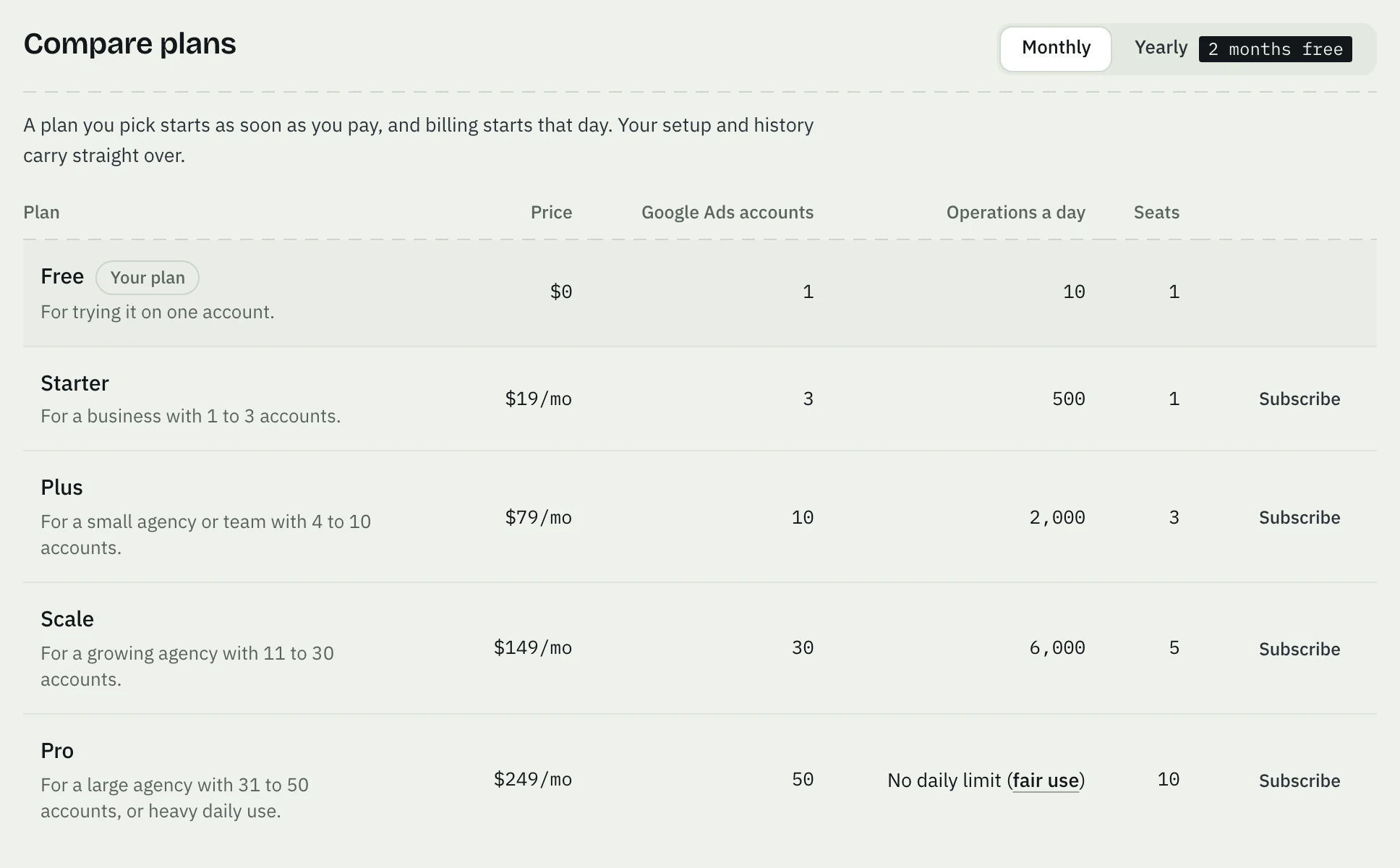
On a trial the plans are under Or start a paid plan today: paying charges today and ends the rest of the trial. With a card already added for the trial there is no Subscribe; press Cancel the card first (see Add a card during the trial).
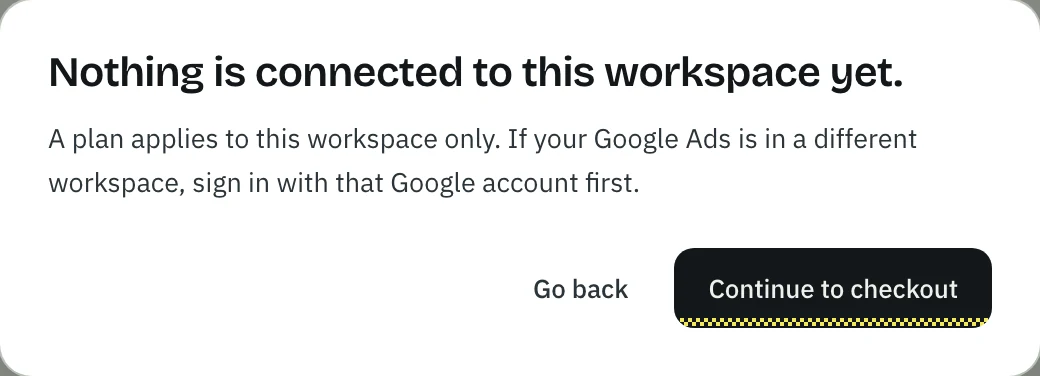
If it warns that nothing is connected, check the workspace
A workspace with no Google product connected asks first. If your Google Ads is in another workspace, press Go back and switch, or sign in with the Google account that has it. Otherwise press Continue to checkout.
Pay on the checkout page
The secure checkout opens. Enter your card (for a rupee plan, a card, UPI AutoPay or an e-mandate) and approve the payment. Who takes the payment and emails your receipt depends on the currency: see Receipts, invoices and your card.
Back on Billing
Billing shows your new plan once the payment is confirmed, usually within a few minutes, with its price and next charge date. If your bank asked you to approve the payment, finish that step first. If it doesn't go through, see Billing and payment issues.
Is a card on file, and when will I be charged?
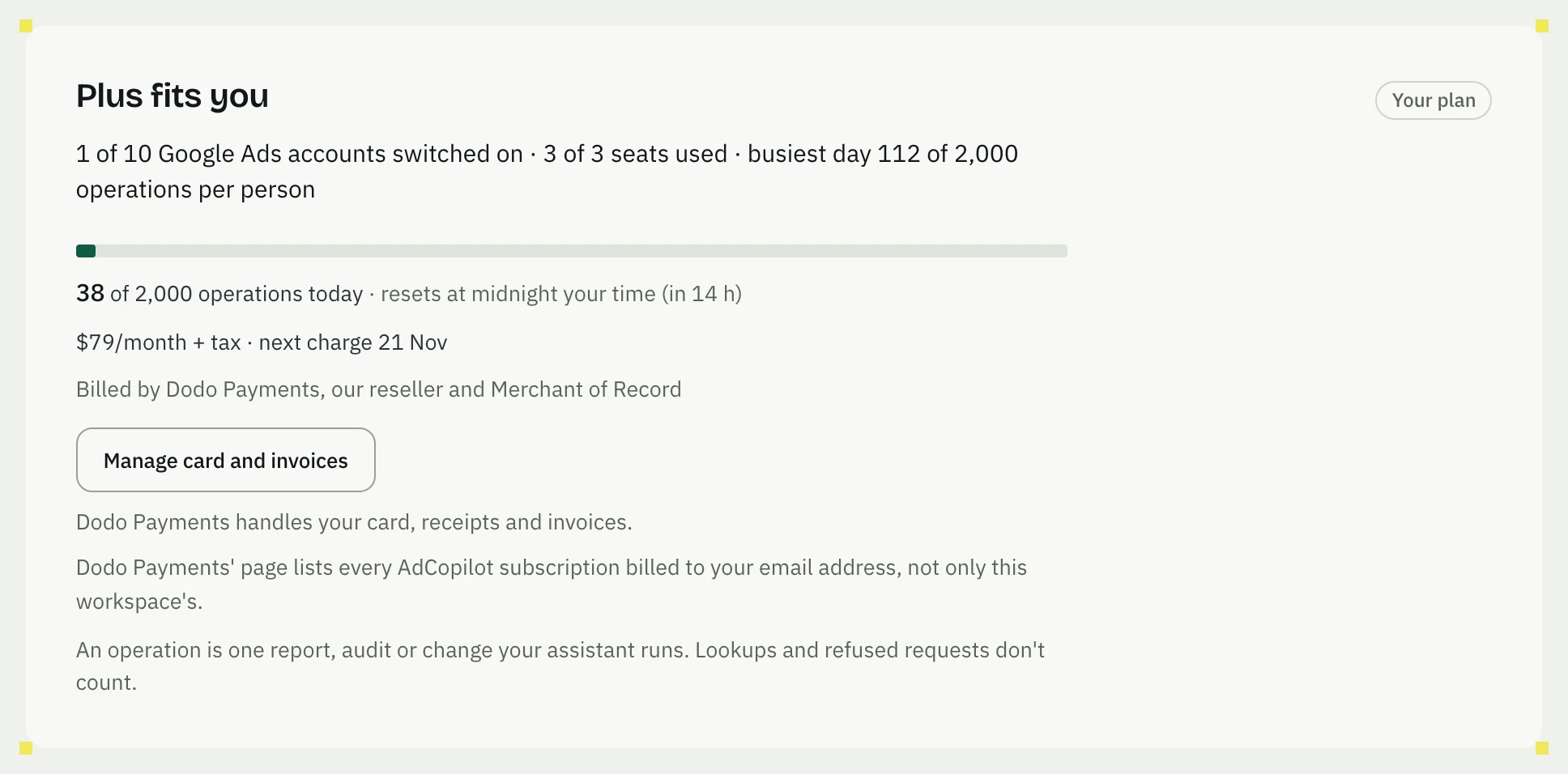
Open Billing. Its first box says it:
-
A paid plan. The box gives the price and the next charge date, such as $79/month + tax · next charge 21 Nov (the picture in the last step above). If the box has Manage card and invoices, that opens the page where you see the card and your invoices, and change the card.
-
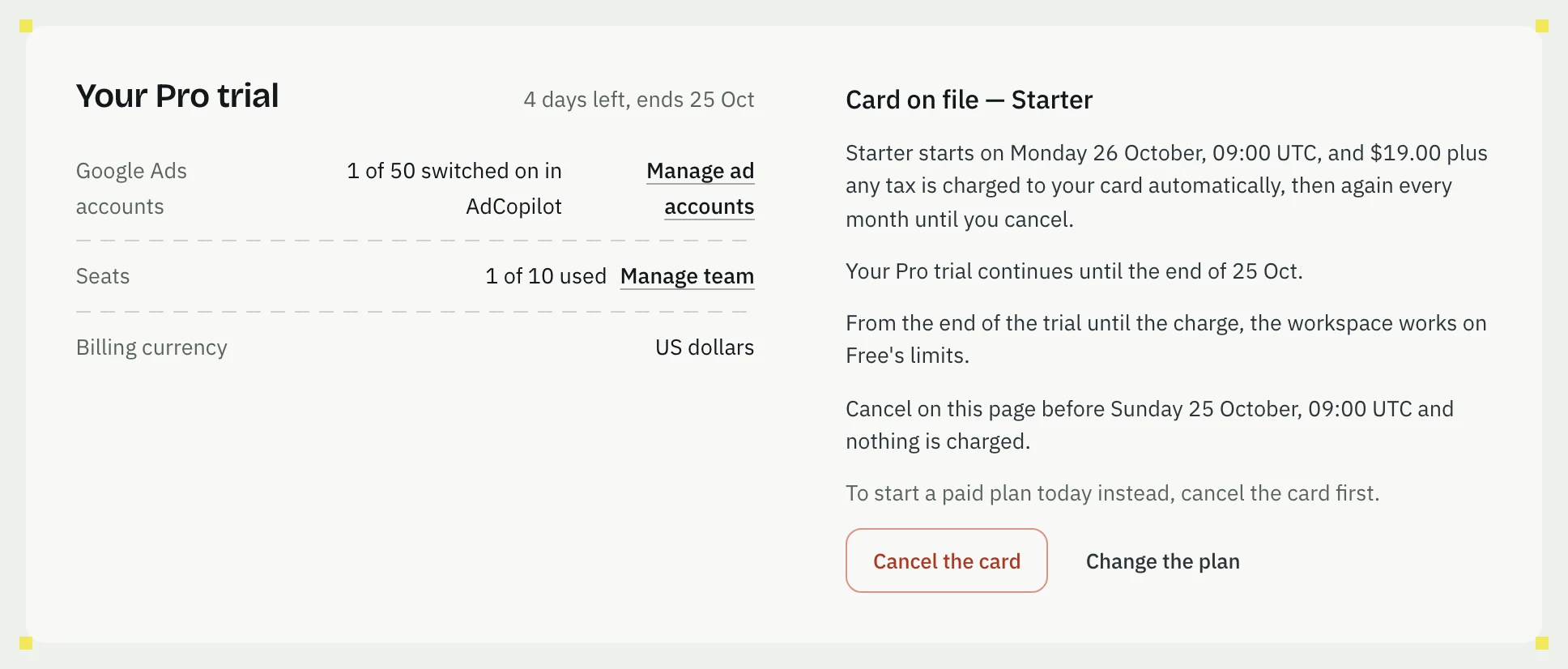
A trial with a card. Card on file, with the plan it starts, the date and time of the charge, and the time to cancel by so that nothing is charged.
-
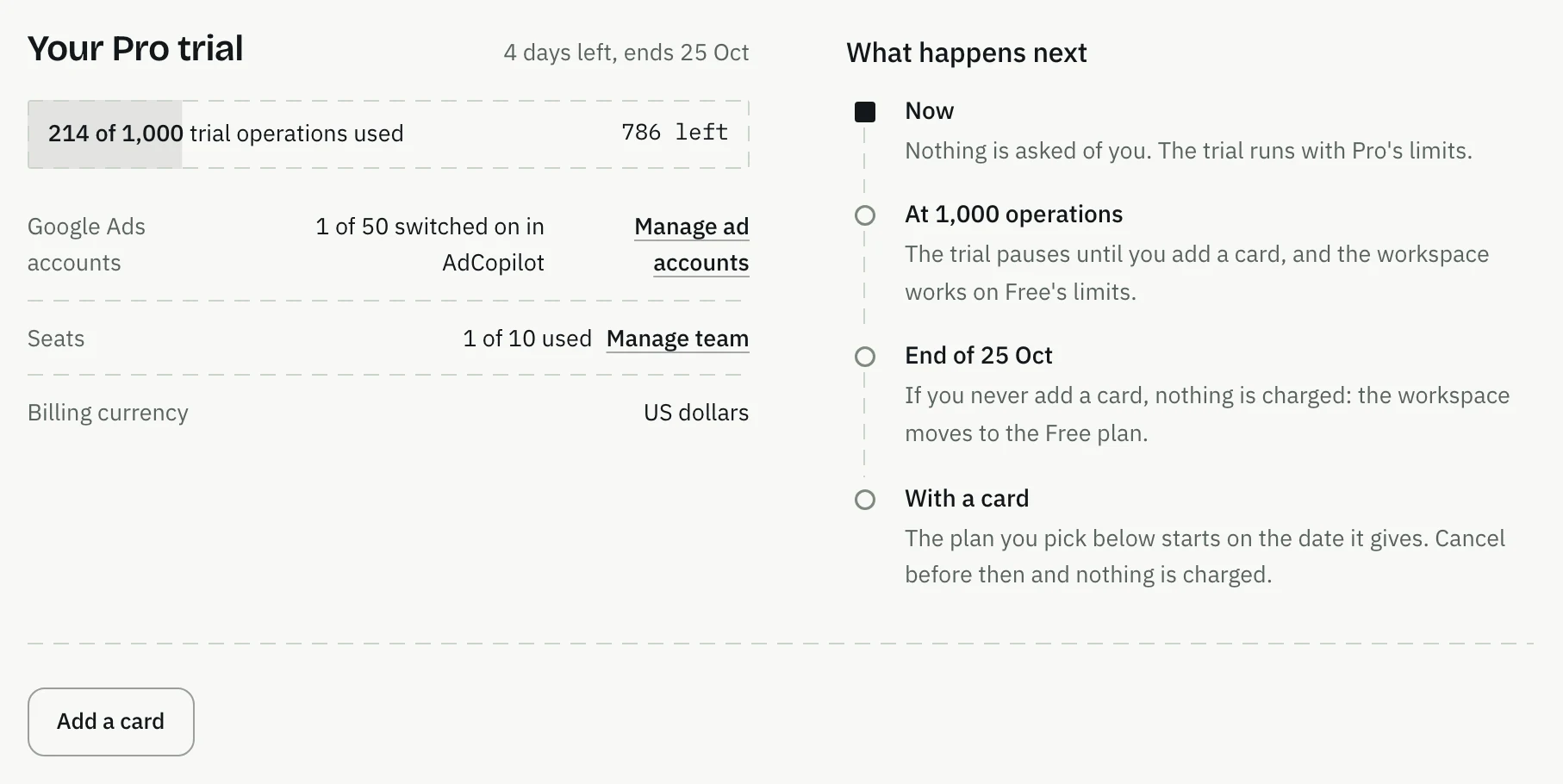
A trial with no card. Your Pro trial, its days left and Add a card. Nothing will be charged: without a card the workspace moves to Free when the trial ends.
-
Free. The plan box says Free, and nothing is charged.
Add a card during the trial
Your first workspace starts on a 5-day Pro trial with no card. After 1,000 operations it pauses until you add one. A card also picks the plan that starts on the charge date the Billing page shows, often the day after the trial ends, with Free's limits in between. In India no card is needed: a trial whose Google Ads account is in rupees or on India's time zone runs 7 days and has no card step. See The trial.
Press Add a card
On Billing, in the trial box, press Add a card. In the trial's last three days the form is already open.
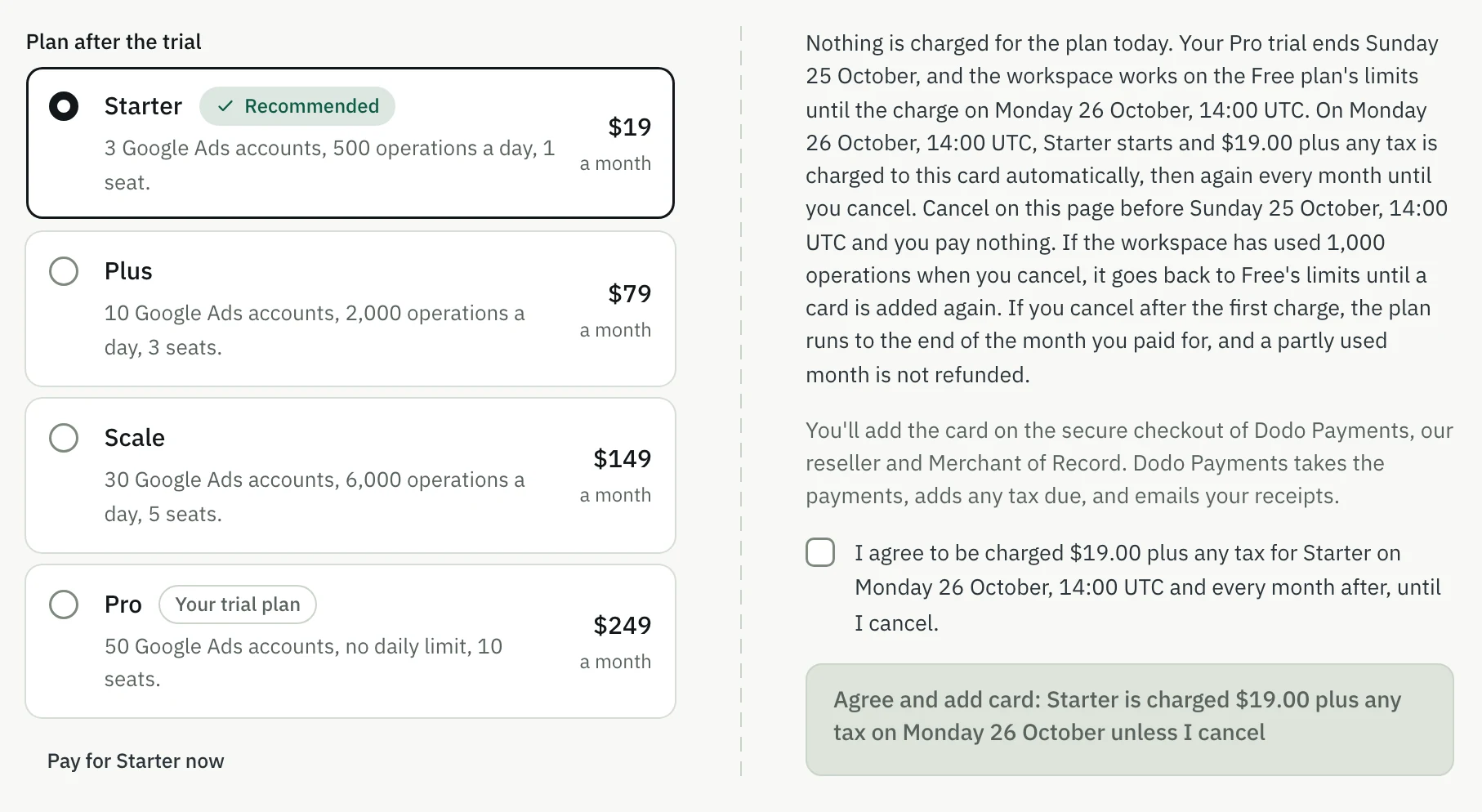
Pick the plan for after the trial
Pick a plan under Plan after the trial. Read the text beside it: nothing is charged for the plan today, it gives the date and time of the first charge, and the time to cancel by.
Tick the box and add the card
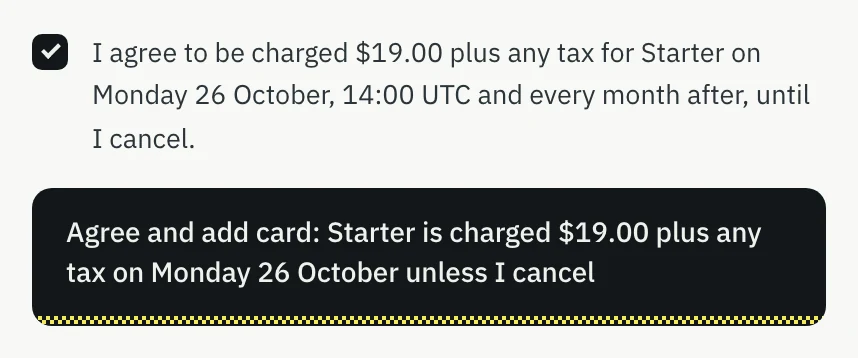
Tick I agree to be charged …, press Agree and add card …, and enter your card on the checkout page. Back on Billing, the trial box says Card on file.
To change your mind, cancel the card
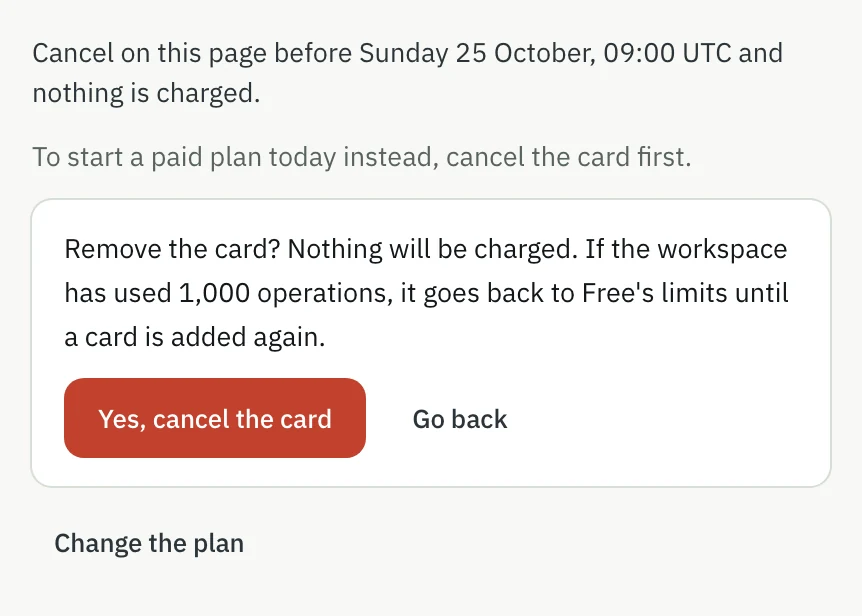
Press Cancel the card before the cancel-by time, then Yes, cancel the card, and nothing is charged. Change the plan picks another plan: you add a card again for it, and it replaces the one before.
Currency
Each workspace is quoted one currency, US dollars, euros or rupees, and checkout charges only that one. See Which currency you are quoted.
Meta ads alongside AdCopilot
Meta has its own connector for Meta ads. Add it next to AdCopilot in Claude or ChatGPT and ask one question across both. Meta's data goes from Meta to your assistant, not through AdCopilot.
Which workspace a plan applies to
A plan covers one workspace, the one you bought it in. How to check which workspace you are in before you pay, the warning on an empty workspace, how to switch workspace or sign in with the right Google account, and what support can move if you paid on the wrong one.