Which workspace a plan applies to
A plan covers one workspace, the one you bought it in. How to check which workspace you are in before you pay, the warning on an empty workspace, how to switch workspace or sign in with the right Google account, and what support can move if you paid on the wrong one.
One plan is for one workspace. A plan covers the workspace it was bought in: its Google Ads accounts, its people and its daily operations. It does not carry over to another workspace, even one of yours.
You can have more than one workspace. Signing in with a Google account that is in no workspace yet makes a new one for it, and New workspace in the workspace menu makes another. So before you pay, check that you are in the workspace that holds your Google Ads.
Check before you pay
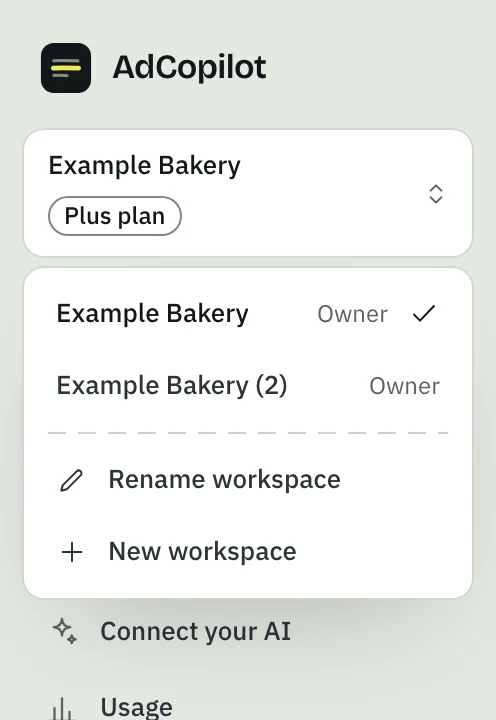
Look at the workspace's name
The name at the top of the left menu is the workspace you are in. Press it to see every workspace you belong to, with your role in each; the tick is the one you are in. Pick another to switch to it.
Look at the Google account you are signed in with
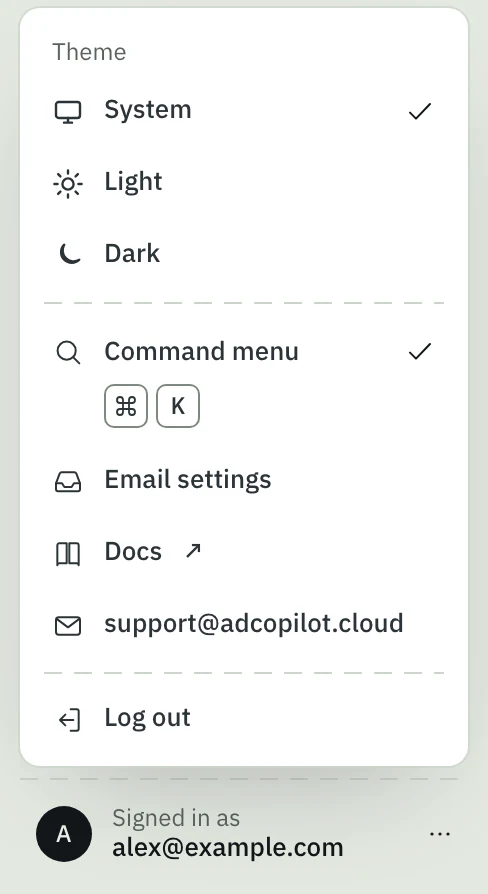
The bottom of the left menu says Signed in as and the address. If your Google Ads is under another Google account, open that menu, press Log out, and sign in again with that account.
Read the warning if it appears
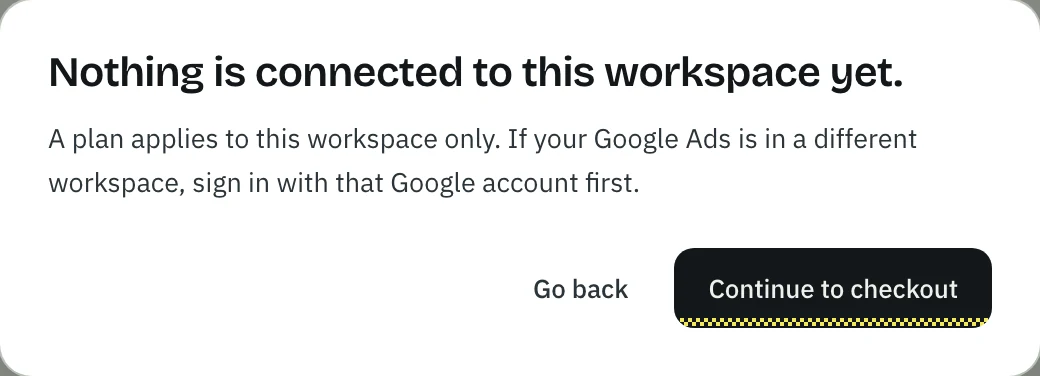
On a workspace with nothing connected (no Google Ads, Analytics, Search Console or Tag Manager), every Subscribe and the trial's card step ask first. Go back keeps you on Billing; Continue to checkout goes on. It never stops you paying.
Then pay: Subscribe and pay.
Paid on the wrong workspace?
Write to support@adcopilot.cloud from the address that paid. Give the names of both workspaces, as the top of the left menu shows them, and say which one the plan should be on.
- A plan whose Billing page shows Manage card and invoices can be moved by support to the payer's other workspace, at that written request. It carries on there with no new charge, and the workspace it leaves goes back to Free at once.
- A card added for the trial in the wrong workspace: press Cancel the card on its Billing page before the cancel-by time, so nothing is charged, then subscribe in the right workspace.
- Any other plan: we reply with what we can do for it.
Your connections and history stay where they are in both workspaces. The workspace that goes back to Free keeps one Google Ads account switched on, as Free allows.
Subscribe and pay
Pick a plan on the Billing page and pay by card at checkout; see whether a card is on file and when you'll be charged; and add a card during the 5-day trial. Step by step, with screenshots.
Billing and plans
AdCopilot's plans are sized by how many Google Ads accounts you run, with a daily operations cap. Your first workspace starts on a 5-day Pro trial; without a card it moves to Free — never a lockout.