The dashboard
A tour of the AdCopilot dashboard at app.adcopilot.cloud, one section per page — Home, Audit, Prompts, Check-ins, Team, Billing, Usage, Settings, the Terms and Privacy Policy prompt and Email settings — with a screenshot of each.
The dashboard is at app.adcopilot.cloud. Sign in with Google. You use AdCopilot from your AI assistant; the dashboard is where you connect things, see what happened, and manage your plan and team.
The screenshots on this page are of a made-up demo workspace, "Example Bakery", on a demo Google Ads account. Press one to see it full size.
The menu on the left
At the top is the name of the workspace you are in, with its plan. Press it to switch to another workspace you belong to, or to make a new one (see Which workspace a plan applies to).
Below it are the pages: Home, Audit, Prompts, Google products, Connect your AI and Usage, then under Workspace: Check-ins, Business profile, Billing, Team (the owner only) and Settings.
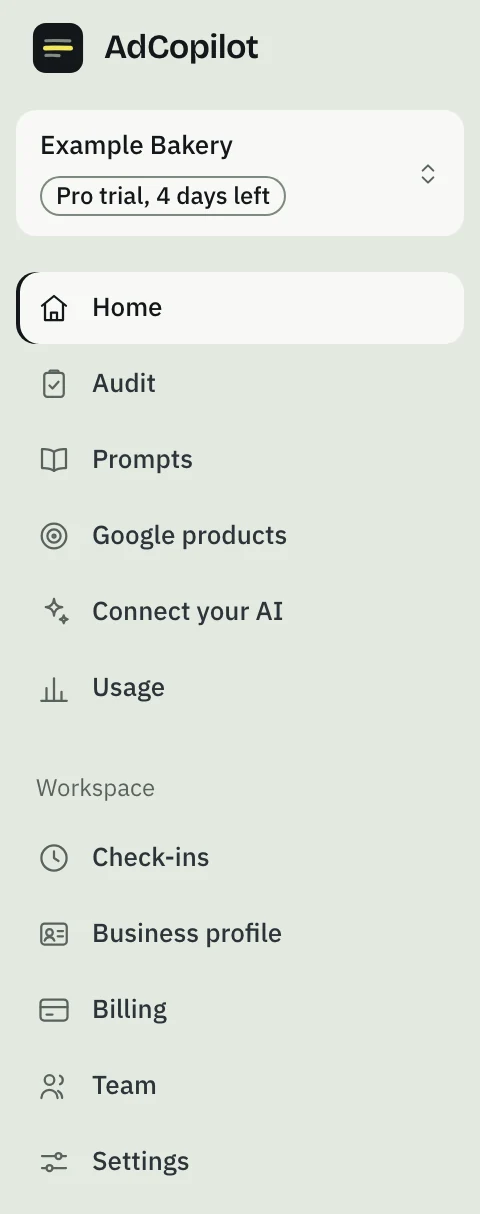
At the bottom is Signed in as and your address. Press it for the account menu: the theme, the Command menu switch, Email settings (the owner only), the docs, our support address and Log out.
Home
Home shows where your setup stands and what to do next. Your setup has four steps (connect, a first audit, a first change, a check-in in your AI), with the next one open below them.
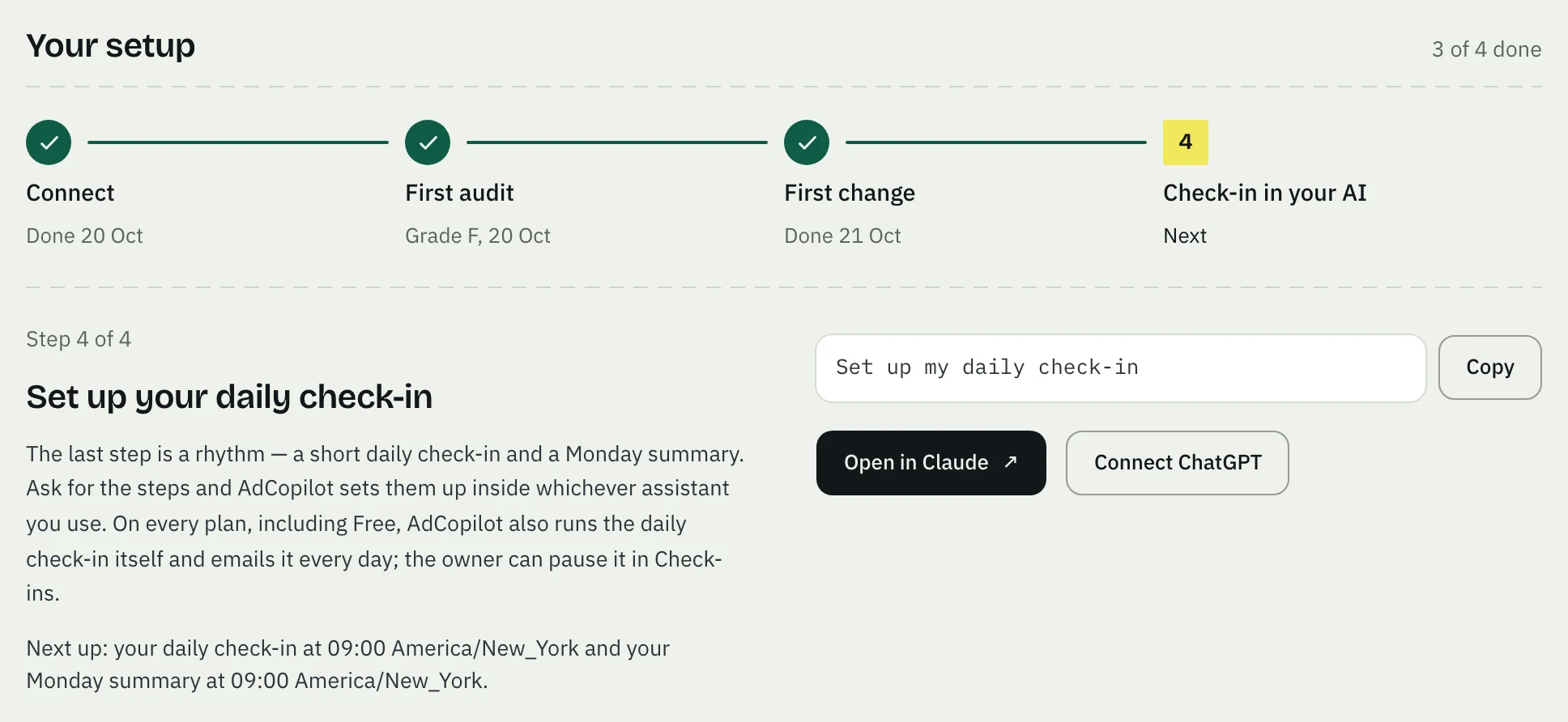
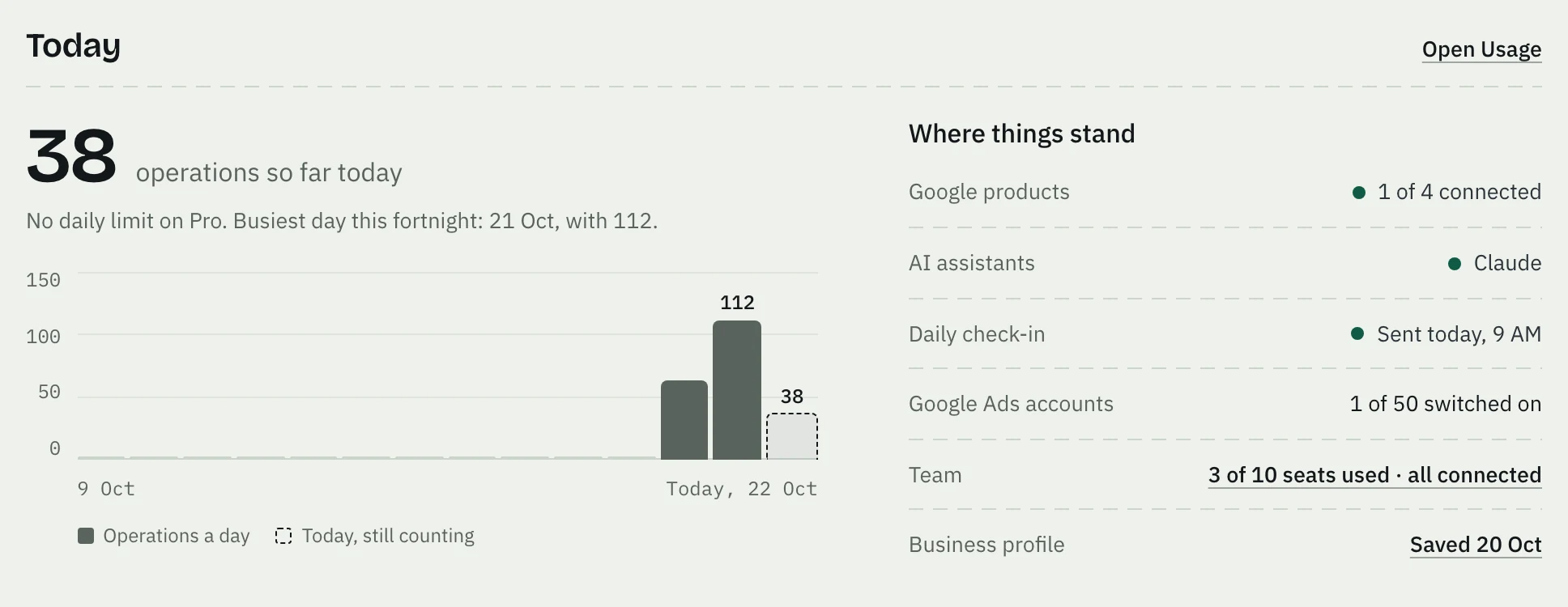
Today shows the operations used so far today and the last 14 days, and Where things stand: what is connected, which assistant, the daily check-in and how many Google Ads accounts are switched on.
Audit
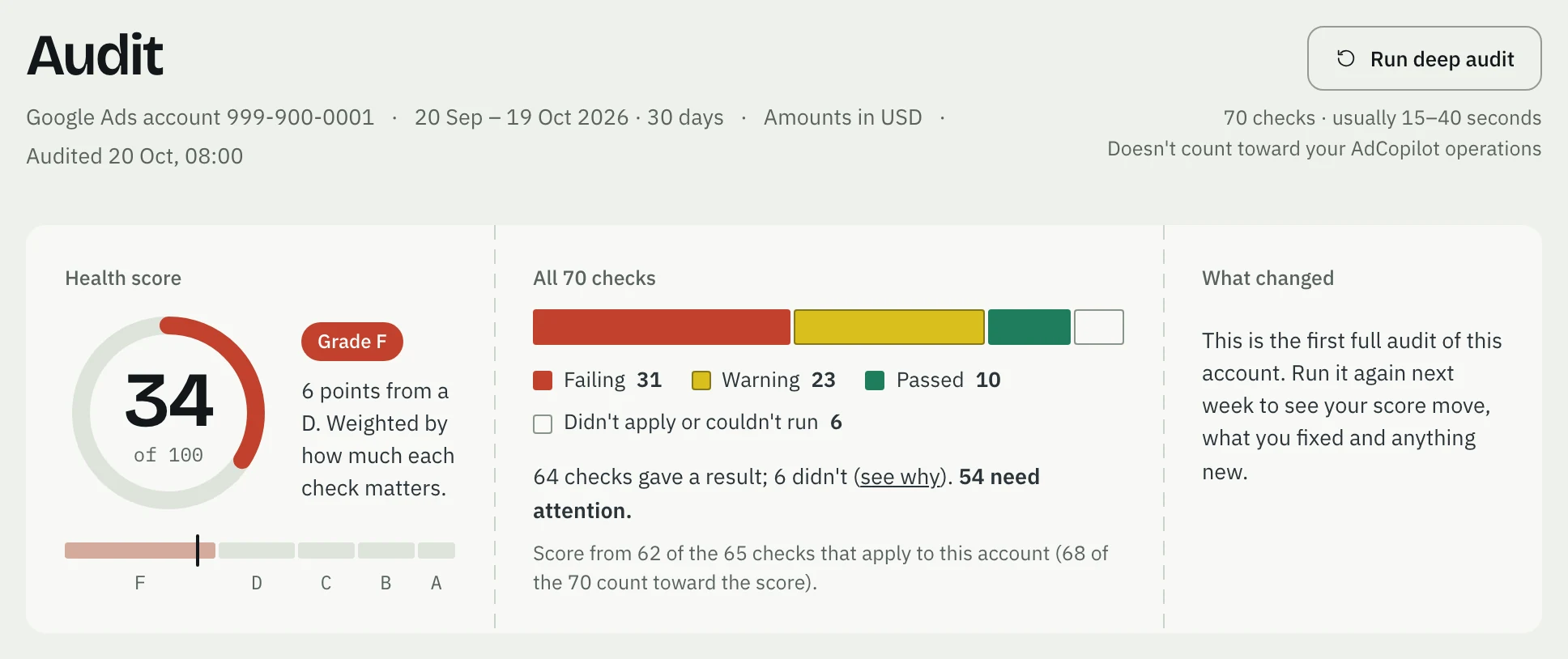
Audit shows the latest audit of a Google Ads account: its health score out of 100 and its grade, and how many of the 70 checks failed, need a look or passed. Run deep audit runs it again; it does not count toward your plan's operations. On Free, one deep audit a day.
Under it are three tabs. Findings starts with the money behind the findings, such as the spend that brought no conversion, then lists what the audit found, with Start here: the biggest money first, then the quickest fixes.
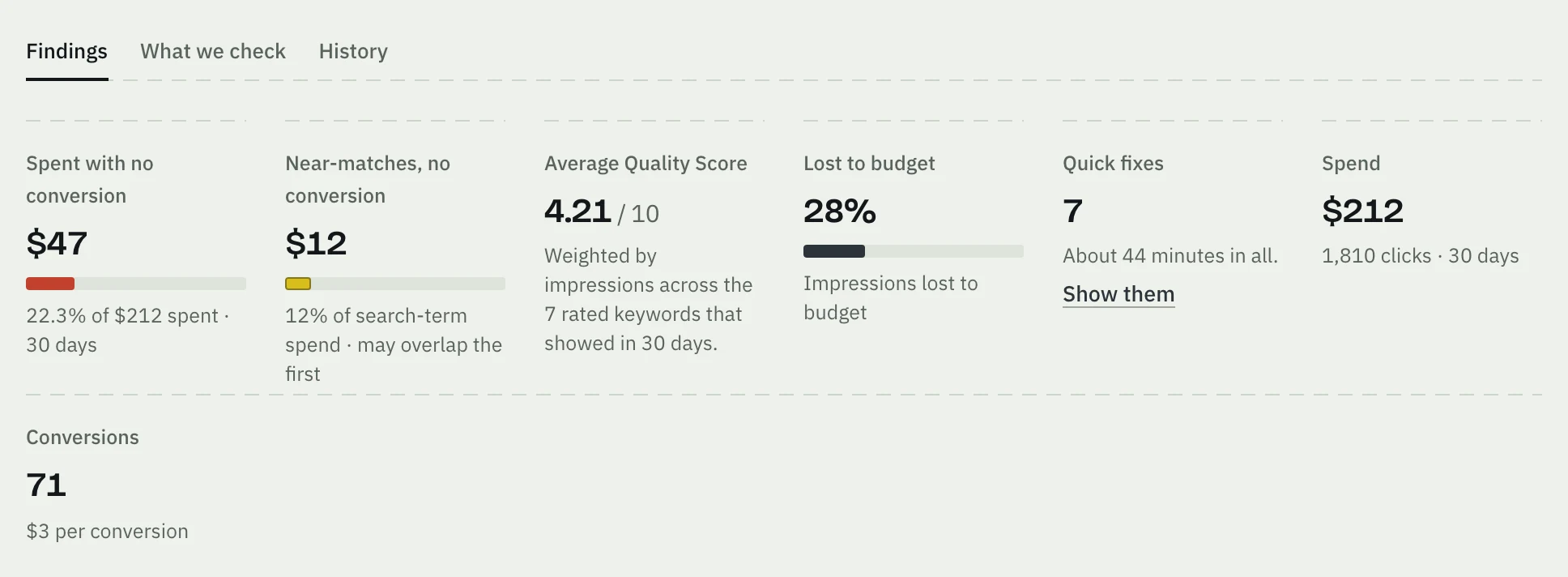
What we check lists all 70 checks with this account's result for each, and filters for the ones to fix, worth a look, passed and the rest. History lists the earlier audits.
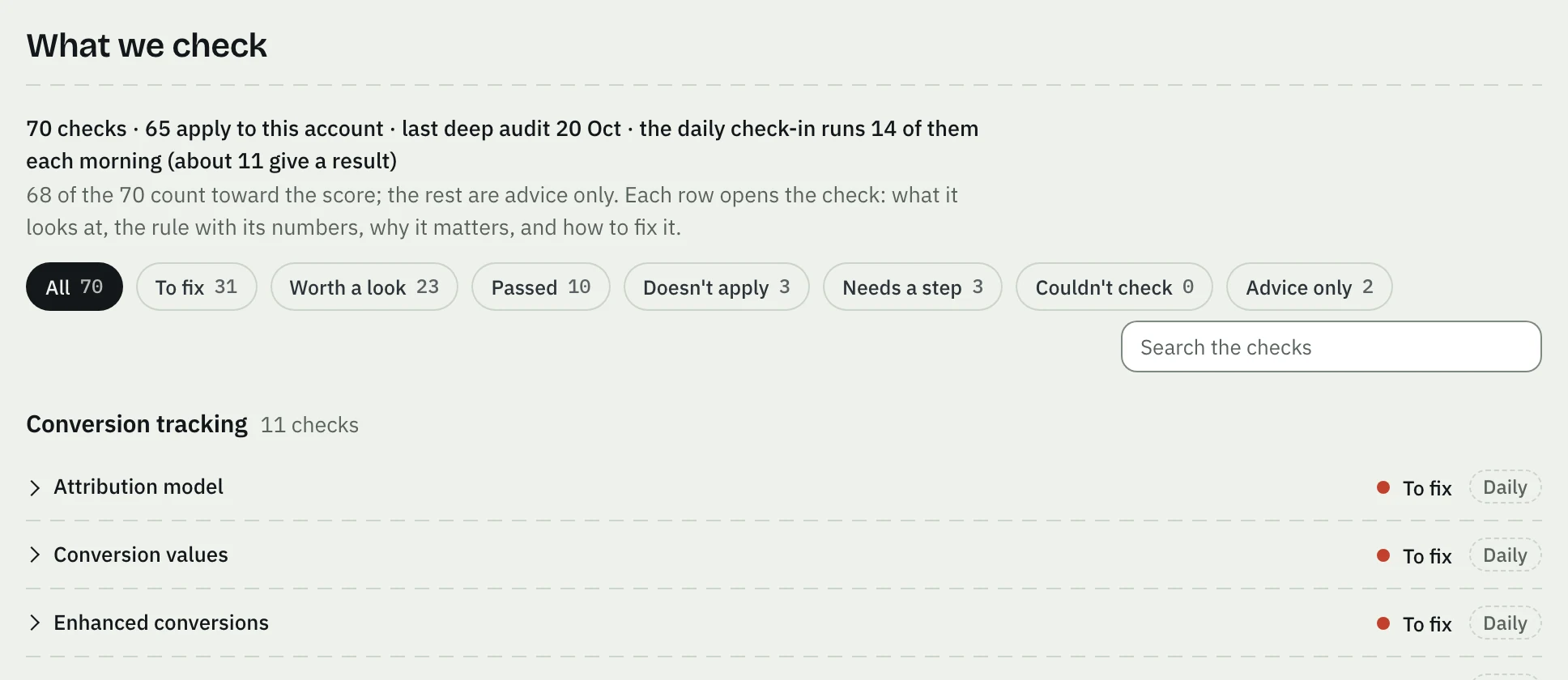
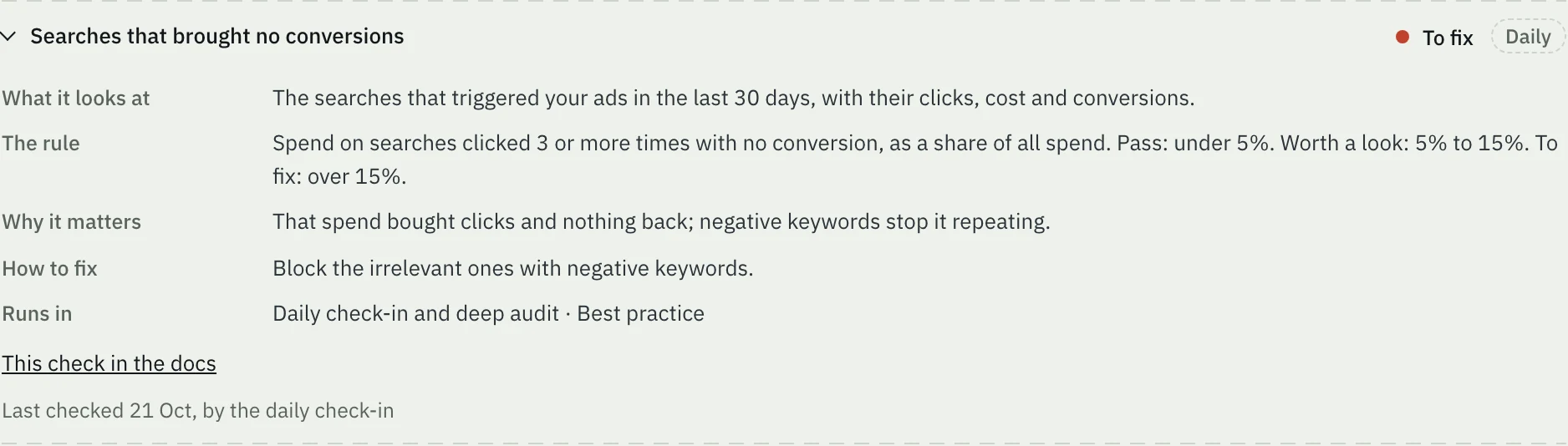
Open a check to read what it looks at, its rule with the numbers, why it matters, how to fix it, and whether the daily check-in runs it. The same text is in the audit checks.
Prompts
Prompts is a library of ready-made requests for your AI assistant: 60 prompts in 8 tasks, from Get set up and Find wasted spend to Report results and Grow organic. For your account picks four for where your setup is. Search them, or choose a task. Press a prompt's button to open Claude, ChatGPT or Cursor with the request already typed; the ⋯ menu has the other assistants, Copy prompt and Show prompt. Your assistant reads your Google accounts live, and a prompt that changes something asks it to propose the change first.
Check-ins
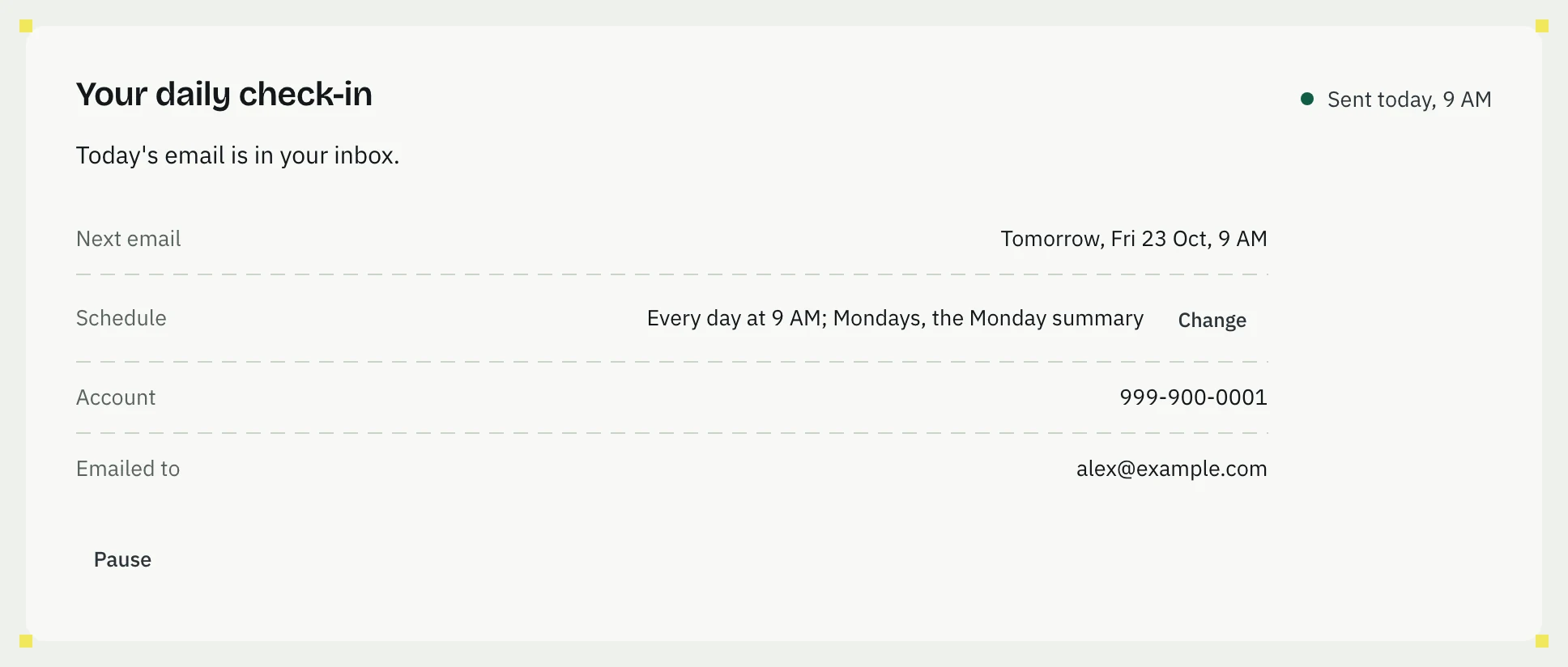
Check-ins is the daily check-in email and the Monday summary. AdCopilot runs both itself on every plan, including Free, and emails them to the owner. The page shows when the next email goes, its schedule, the Google Ads account it reads and who it goes to. To change the time, press Change beside Schedule, pick the time and whether the Monday summary takes the daily email's place on Mondays, then press Save. Pause stops both emails, and Resume starts them again. Below are the steps to run the same check inside your own Claude. See The daily routine.
Team
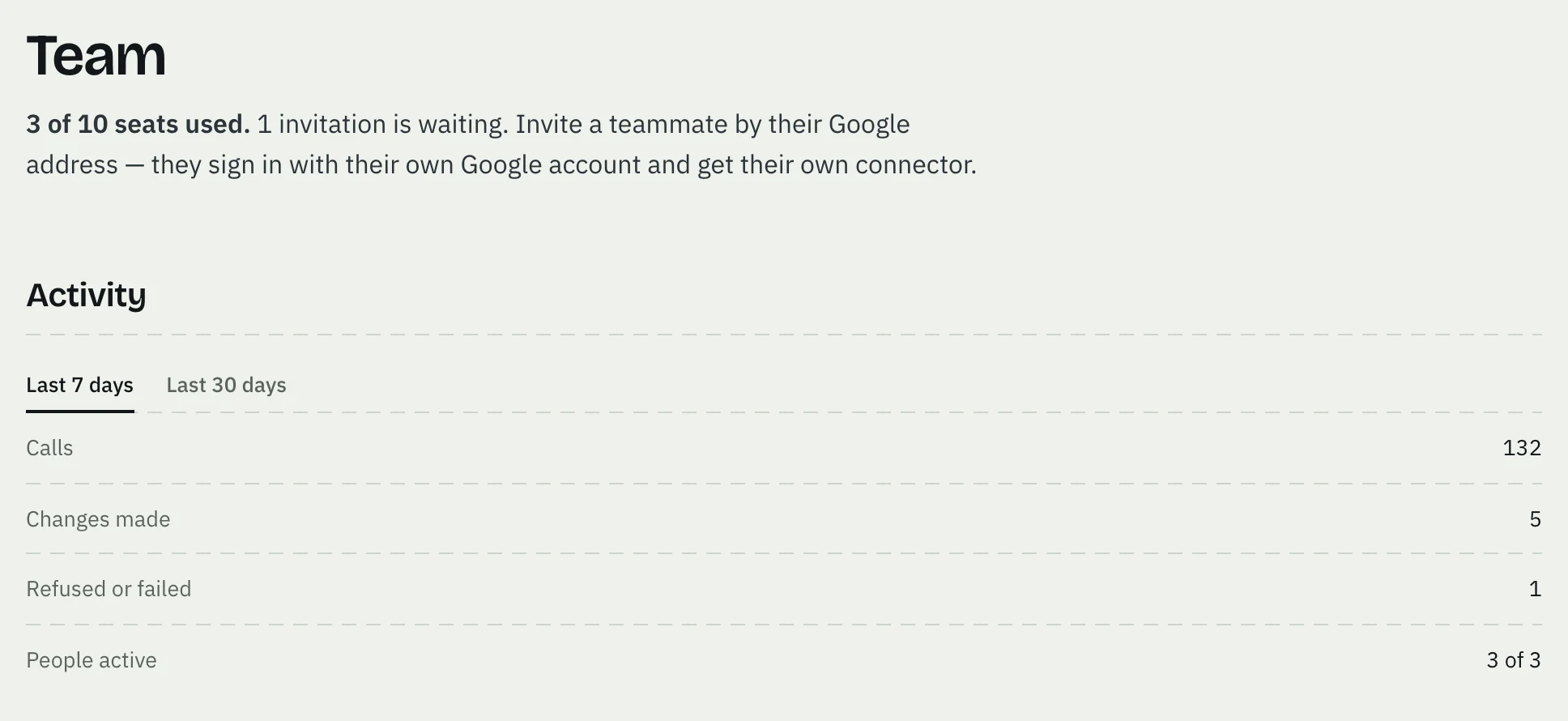
Team is the owner's. It shows the seats used, what the team's assistants did in the last 7 or 30 days, in all and for each person, the people with their roles, the form to invite someone, and the invitations still waiting. See Invite a teammate and Team and seats.
Billing
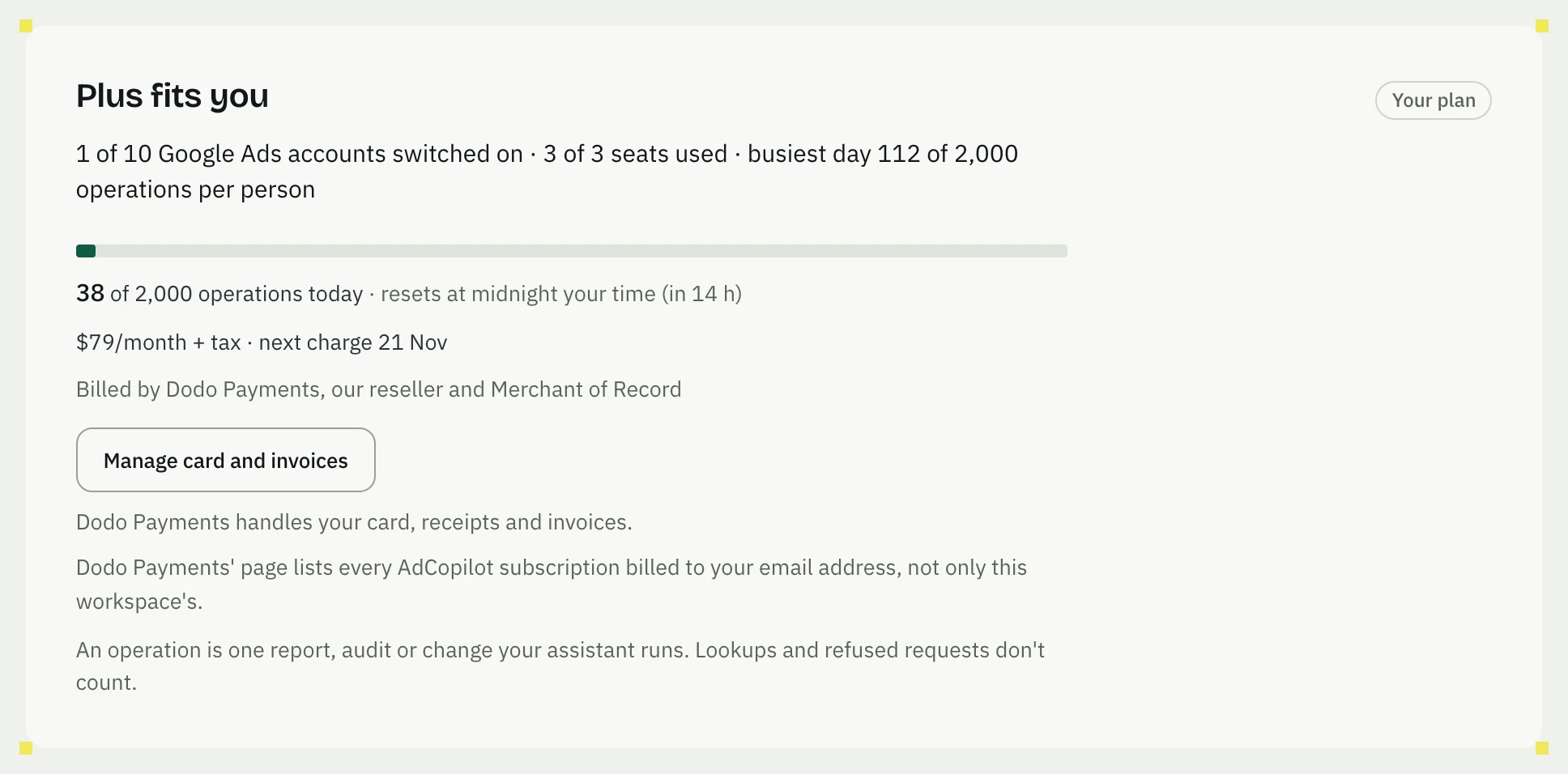
Billing shows your plan, whether it fits how you work, what it charges and when, the card on file, and the plans to compare. The owner subscribes, adds a card for the trial, changes or cancels the plan here; a teammate sees the plan and who manages billing. See Subscribe and pay and Billing and plans.
Usage
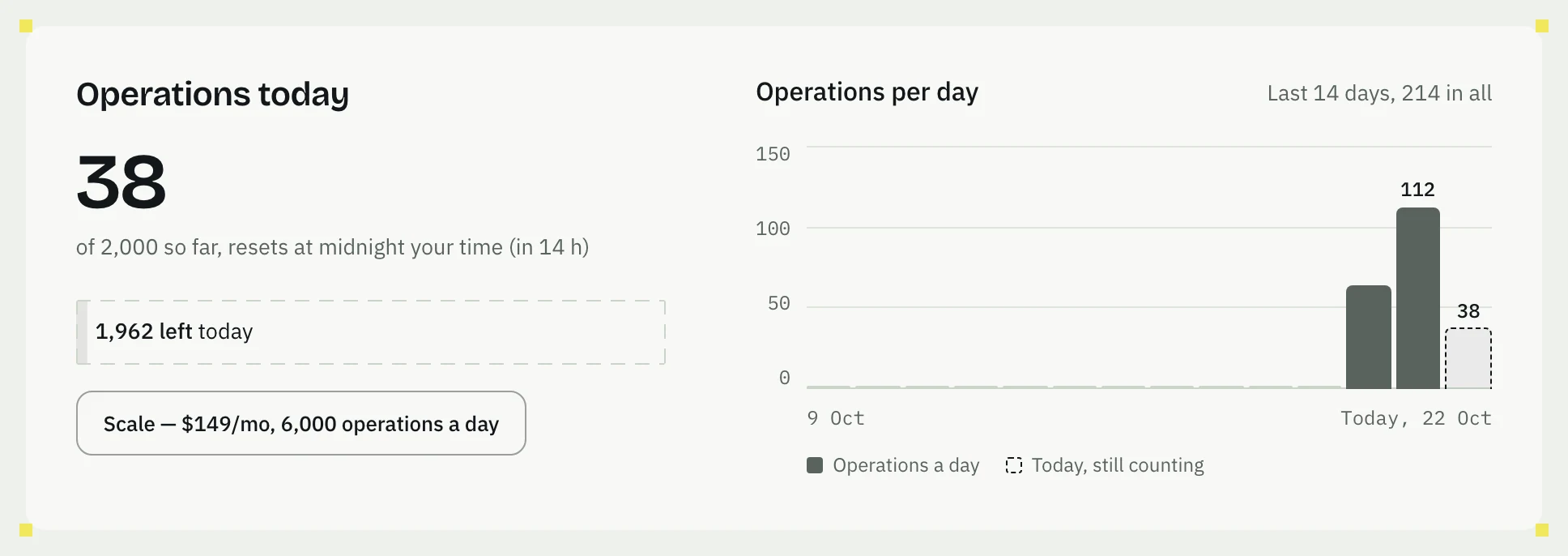
Usage shows today's operations against your plan's daily limit and the last 14 days.
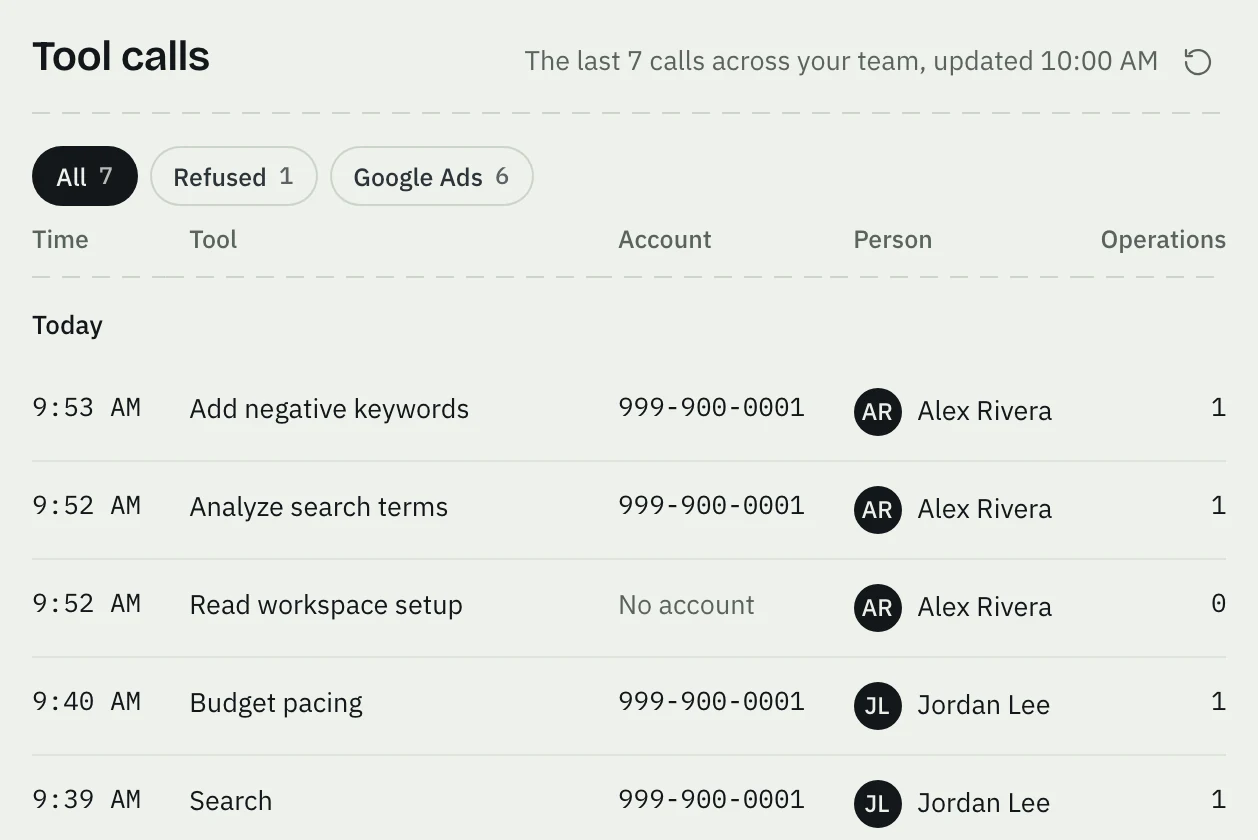
Below is Tool calls: the latest calls, the whole team's for the owner and your own for a teammate, each with the tool, the Google Ads account, the person and the operations it counted. A refused call is marked Refused, with the reason. See Plan caps and limits.
Settings
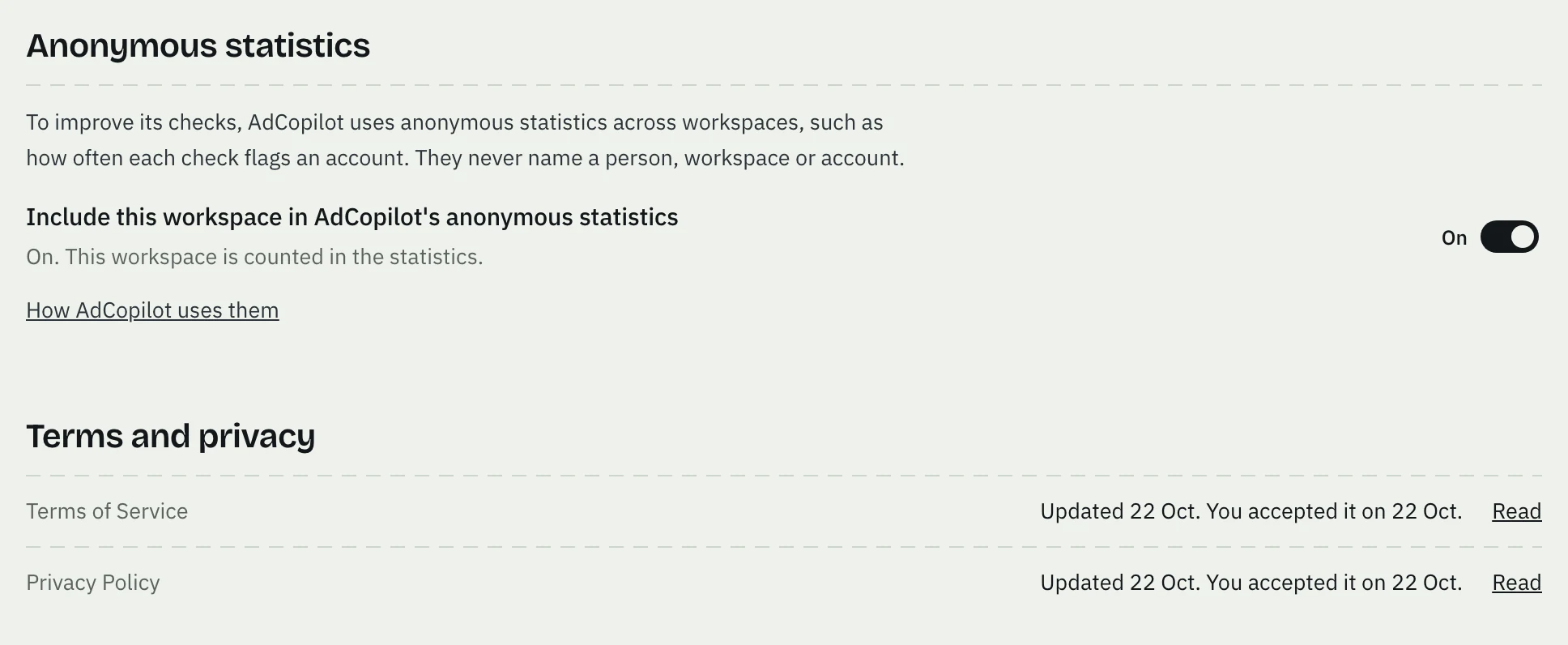
Settings shows whether the workspace is in AdCopilot's anonymous statistics (the owner can switch it off) and when you accepted our Terms of Service and Privacy Policy.
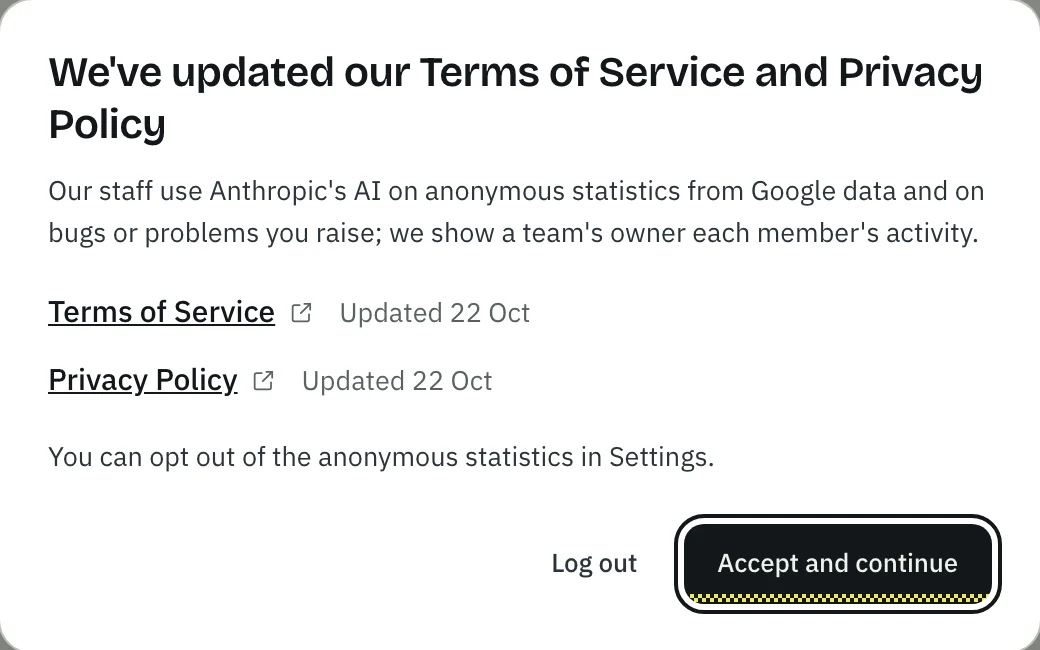
The Terms and Privacy Policy prompt
The first time you sign in, the dashboard asks you to accept our Terms of Service and Privacy Policy before it opens. When either changes, it asks again with this box over the dashboard: it names what changed, links both documents, and has Accept and continue and Log out. The dashboard waits until you accept; your AI assistant keeps working meanwhile. The email about an update links to the same box.
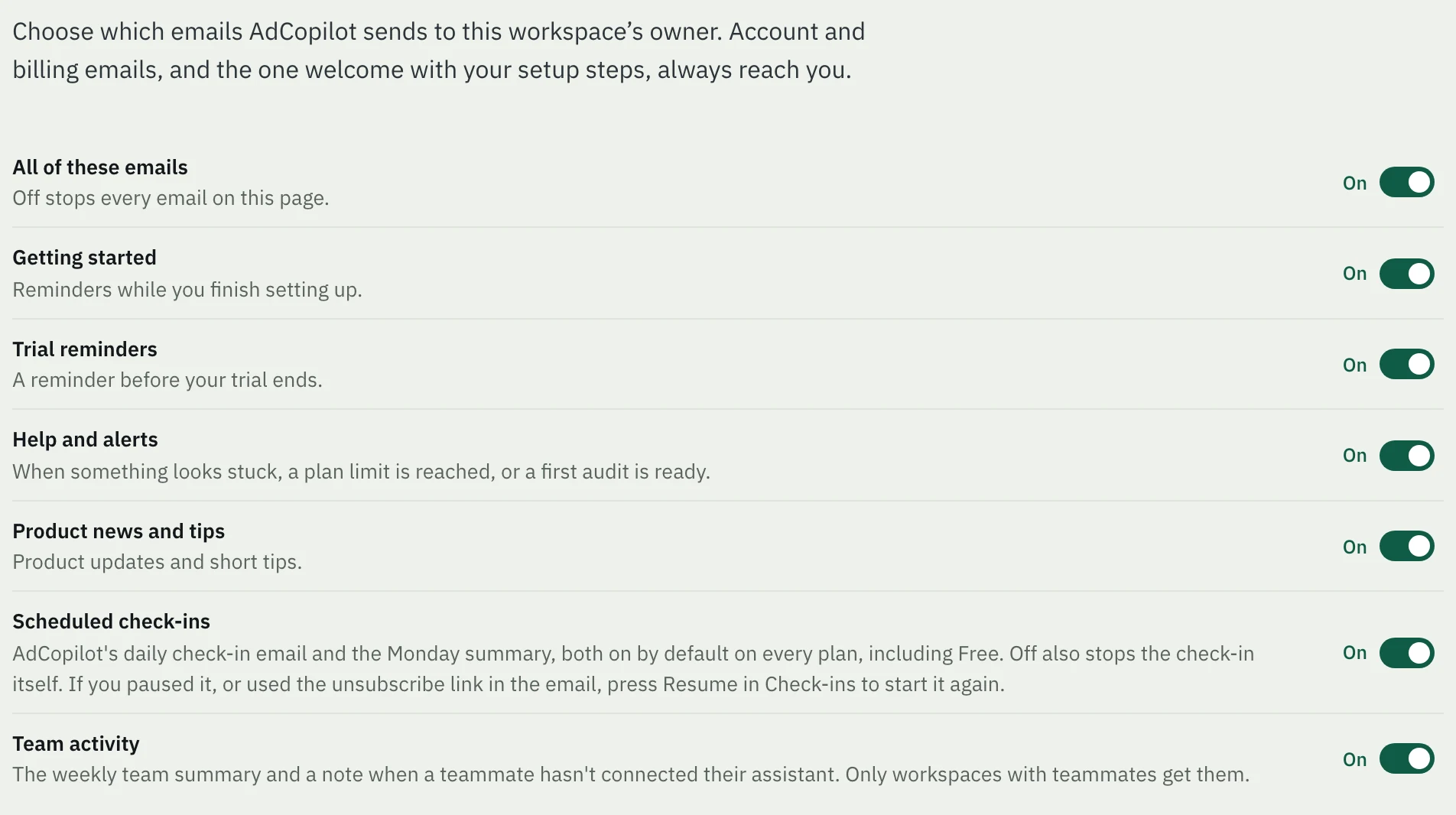
Email settings
Email settings, in the account menu at the bottom of the left menu, is where the owner chooses which emails AdCopilot sends. See Stop emails.
Google products and Connect your AI
Google products is where you connect Google Ads, Analytics, Search Console and Tag Manager, and choose which Google Ads accounts are switched on. See Connect Google Ads. Connect your AI has the steps for each assistant and lists the ones connected. See Connect your assistant.
Run your first audit
Say "Get me started with AdCopilot" — AdCopilot reads what you have connected, tells you what state your account is in, and gives you the next step. Then run the read-only morning audit or a full audit.
Reconnecting
When Google stops accepting AdCopilot's sign-in, when your assistant needs to pick up tools a release added, or when Connect your AI says it needs re-authorization — how to fix each without changing anything in your accounts.